
 JohanRouyer
MCP connector that lets Claude analyze, slice and compare 3D prints with Bambu Studio, for Bambu Lab
MCP connector that lets Claude analyze, slice and compare 3D prints with Bambu Studio, for Bambu Lab printers.
·
Bambu Studio Advisor - MCP
An MCP connector that gives Claude access to Bambu Studio and your Bambu Lab printer.
Hand Claude an STL or 3MF file: it analyzes the part, asks which filament you use, slices several
variants with the real Bambu Studio engine, compares time and weight, then gives you a .3mf
project ready to open and print. Everything runs locally on your PC.
Works with Bambu Lab printers (P1S, P1P, X1 Carbon, A1, A1 mini…): on first use, Claude asks for your printer, build plate and usual filament. Recipes are tuned on a 0.4 mm nozzle.
Contents
- What it does
- Example
- Requirements
- Installation
- Configuration
- Available tools
- How it works
- Safety
- Privacy Policy
- Known limitations
- Troubleshooting
- Development
- License
What it does
- First-use setup: your printer, build plate and usual filament, asked once and saved. Build volume, presets and accelerations follow the printer you chose.
- Part analysis: dimensions, volume, fit on the bed, overhangs and bridges for 6 orientations, best orientation, need for supports or a brim.
- Real slicing with
bambu-studio.exe: time, weight, time per line type, warnings. - Recipe comparison in parallel (
quality,balanced,speed,strength,light), with the recommended variant and per-plate details. - Multi-plate projects: a single
result.3mfholds every plate and its G-code. - Automatic conversion: a project made for another printer is converted to yours, keeping the author's print settings.
- Filament swap: applies your filament (temperatures, build plate, flow, cooling) to any project.
- Checks: volumetric flow and actual speed per line type, layers too thick, cooling, lightning infill, pitfalls per material.
- Presets: read, compare, create or modify your Bambu Studio presets (with backups).
- Printer (optional): status over the local network, temperatures, AMS, HMS errors, read-only.
The connector never starts a print: you open the produced 3MF in Bambu Studio and print it yourself.
Example
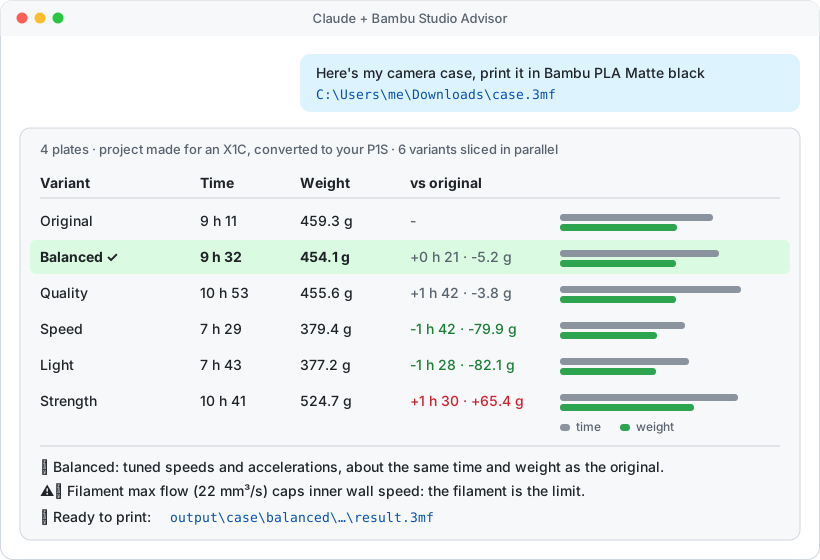
You: here's my camera case, print it in Bambu PLA Matte black
C:\Users\me\Downloads\case.3mfClaude: analyzes the 4 plates, converts the project (made for an X1C) to your printer, applies the
Bambu PLA Mattepreset, slices the 6 variants in parallel, then answers:
Variant Time Weight Original 9 h 11 459.3 g Balanced 9 h 32 454.1 g Speed 7 h 29 379.4 g … Recommendation, things to watch, per-plate details and the path of the
result.3mfto open.
This summary comes from the 3d-printing skill shipped with the
connector (installed with the plugin, or by hand in step 4).
Requirements
| System | Windows 10 or 11 |
| Bambu Studio | Installed (default path: C:\Program Files\Bambu Studio) and launched at least once |
| Python | 3.10 or newer (python.org), or uv for the Claude plugin |
| Claude | Claude Code (terminal, desktop app or IDE) or Claude Desktop |
| Git | To clone the repository (or download the ZIP from GitHub) |
Installation
Option A: Claude plugin (simplest)
The plugin installs the connector and the 3d-printing skill in one go, and keeps them up to date.
-
Install uv once, following its official installation page (the Windows installer or WinGet package both work).
-
In Claude Code, add the plugin:
/plugin marketplace add JohanRouyer/BambuStudio-Advisor-MCP /plugin install bambu-studio-advisor@bambu-studio-advisor -
Optional: fill in the printer IP address, serial number and access code when Claude Code asks (only the printer status needs them). The access code is kept in your system's secure storage.
On first start, uv creates the Python environment from uv.lock in the plugin folder (about 30 s), then the connector is
ready: go to First use. Your defaults and results are kept in the plugin's data folder
(~/.claude/plugins/data/…), so they survive updates. If you had copied the skill by hand
(step 4 below), delete ~\.claude\skills\3d-printing to avoid having it twice.
Option B: manual installation
Run the following commands in PowerShell.
1. Get the project
git clone https://github.com/JohanRouyer/BambuStudio-Advisor-MCP.git
cd BambuStudio-Advisor-MCP
Put the folder wherever you like, but do not move it afterwards: Claude starts it by its full path.
2. Create the Python environment
python -m venv .venv
.venv\Scripts\python.exe -m pip install -r requirements.txt
3. Register the connector with Claude
Claude Code: from the project folder, register it for all your projects (--scope user):
claude mcp add --scope user bambu-studio -- "$PWD\.venv\Scripts\python.exe" "$PWD\run_server.py"Claude Desktop: open Settings → Developer → Edit Config and add the following, replacing the path with your folder's (with doubled backslashes):
{
  "mcpServers": {
    "bambu-studio": {
      "command": "C:\\path\\to\\BambuStudio-Advisor-MCP\\.venv\\Scripts\\python.exe",
      "args": ["C:\\path\\to\\BambuStudio-Advisor-MCP\\run_server.py"]
    }
  }
}
Then restart Claude so it loads the connector.
4. Install the 3d-printing skill (recommended)
The skill tells Claude how to chain the tools as soon as you talk about 3D printing or give an STL / 3MF file: analysis, filament question, slicing, full summary. Without it the tools still work, but you have to ask for them one by one.
New-Item -ItemType Directory -Force "$env:USERPROFILE\.claude\skills" | Out-Null
Copy-Item -Recurse -Force skills\3d-printing "$env:USERPROFILE\.claude\skills\"
The skill is used by Claude Code. To update it after a git pull, run the Copy-Item command again.
5. First use
Give Claude a file, or ask "set up my printer". Since nothing is set yet, it first asks for:
- your printer (P1S, X1 Carbon, A1, A1 mini… and the nozzle if it is not 0.4 mm);
- your usual build plate (Textured PEI, Cool Plate, High Temp, Engineering);
- your usual filament (Bambu PLA Basic, PLA Matte, PETG HF…).
It saves these choices in config.json (in the plugin's data folder with option A), then carries on with your request. To change them later,
just say so: "I switched to an A1", "my usual plate is the Cool Plate".
To check the installation, ask "show me the bambu-studio connector info": the answer should contain
"exists": true for Bambu Studio and the path of your presets.
Configuration
Defaults are set by talking to Claude (see First use): it writes them to
config.json, which is not tracked by git. You can also edit that file by hand, starting from the
example:
Copy-Item config.example.json config.json| Key | Purpose | Default |
|---|---|---|
default_machine | Printer targeted by every slice (exact machine preset name) | Bambu Lab P1S 0.4 nozzle |
default_process | Starting process for an STL without presets (set along with the printer) | 0.20mm Standard @BBL X1C |
default_bed_type | Build plate used when slicing | the project's |
default_filament | Filament offered first, and used for an STL without a specified filament | PLA Basic |
output_dir | Results folder | output\ in the project |
bambu_studio_dir | Bambu Studio install folder | C:\Program Files\Bambu Studio |
bambu_data_dir | Bambu Studio data folder | %APPDATA%\BambuStudio |
user_id | Bambu account whose user presets are read | the first account found |
printer | Printer connection over the local network (see below) | empty |
Bambu's P1S presets reuse the X1C processes: that is why the default process is named
@BBL X1C. It is picked automatically when you change printer.
Printer connection (optional)
Only the printer_status tool needs it. With the plugin, enter it in the plugin settings (they take
precedence over config.json). Otherwise, in config.json, fill in the printer section:
| Key | Where to find it on the printer's screen |
|---|---|
host | IP address: Settings → Network |
serial | Serial number: Settings → Device |
access_code | LAN access code: Settings → Network |
The PC and the printer must be on the same network.
Available tools
| Tool | Purpose |
|---|---|
analyze_model | Geometry of an STL / 3MF: dimensions, volume, overhangs and bridges for 6 orientations, best orientation |
inspect_3mf | Summary of a 3MF: presets, objects and their own settings, plates, slicing results |
material_guide | Advice per material: preset, build plates and temperatures, lid / door, AMS, nozzle, drying |
prepare_print | STL / 3MF → ready project in one call: orientation, material preset, build plate, supports, brim, copies, slice |
optimize | The 5 recipes and the original sliced in parallel, with the recommended variant |
compare_slices | Your own variants {name: {setting: value}} sliced in parallel |
slice_model | A single slice, with presets and settings of your choice |
check_settings | Checks a 3MF without slicing: flow, actual speeds, cooling, pitfalls |
get_3mf_settings | Every setting of a 3MF project, filterable by keyword |
edit_3mf | Edited copy of a 3MF (<name>_claude.3mf), global or per-object settings |
list_presets | Process / filament / machine presets compatible with your default printer |
get_preset | Settings of a preset, inheritance resolved |
compare_presets | Differences between two presets |
save_preset | Creates or modifies a user preset (the old one is backed up in backups\) |
slice_history | Latest slices: models, presets, settings, time, weight, produced file |
printer_status | Printer status: print job, temperatures, AMS, HMS errors (read-only) |
setup_defaults | Default printer, build plate and filament: read, available choices, save |
connector_info | Paths used, configuration status, whether first-use setup is needed |
How it works
Recipes
They apply on top of the project's settings. On a Bambu project, everything else (supports, brims, the author's per-object settings) is kept.
| Recipe | Layer | Walls | Infill | Top / bottom | Accelerations |
|---|---|---|---|---|---|
quality | 0.16 mm | project's | project's | project's | gentle: wall 3,000, top 1,500 |
balanced | 0.20 mm | project's | project's | project's | standard: 10,000, wall 5,000, top 2,000 |
speed | 0.28 mm | 2 | adaptive cubic 12 % | 4 / 3 | brisk: 14,000, wall 7,000 |
strength | 0.20 mm | 4 | gyroid 25 % | 5 / 4 | project's |
light | 0.24 mm | 2 | adaptive cubic 10 % | 4 / 3 | 12,000, wall 6,000 |
A few deliberate choices:
- No lightning infill: it leaves top layers bridging over large gaps. Adaptive cubic keeps most of the weight saving without that flaw.
- Little room on speeds: in PLA, the filament's max flow (15 to 22 mm³/s) already caps speeds. Recipes therefore play on accelerations, brought down to 75 % of your printer's maximum when needed (9,000 mm/s² on an A1, which tops out at 12,000).
Filament
With the skill, Claude always asks for your filament before slicing, even if the file has one,
offering your usual filament first. Presets follow your printer (Bambu PLA Basic @BBL A1 on an A1,
for example). On a 3MF project, the chosen preset replaces the project's filament in every slot,
and the author's print settings are kept.
Printer
Every slice targets your default printer. A project made for another model is converted before slicing: only the printer part changes (start and end G-code, model, nozzle). An STL without presets gets your printer, its standard process and your usual filament. The part analysis uses your printer's build volume (180 × 180 × 180 mm for an A1 mini, for example).
Output files
output/
├── <project>/
│   ├── original/<timestamp>/result.3mf
│   ├── balanced/<timestamp>/result.3mf
│   └── …
├── .cache/          slices already done (delete the folder to clear it)
└── history.jsonl one line per slice- One
result.3mfper variant, with every plate and its G-code. - Cache: an identical slice (same models, settings, presets and Bambu Studio version) comes back instantly.
- Parallelism: one Bambu Studio per two cores (6 on a 12-core CPU).
- Retry: if Bambu Studio hangs (rare), the slice is retried once, then dropped with a clear message.
Safety
- No print is ever started:
printer_statusis read-only. - Original files are never modified: results go to
output\, andedit_3mfwrites a copy (unless given the same path as output; a.backupcopy is then made). save_presetbacks up the old preset inbackups\before writing. Restart Bambu Studio so it sees a modified preset.- The printer's access code gives local control of it:
config.jsonmust stay on your PC (it is excluded from git).
Privacy Policy
The connector runs entirely on your PC and collects no personal data: no telemetry, no account, no internet requests of its own.
- Collected: only the 3D files you point to, your Bambu Studio presets, your defaults and, optionally, your printer's IP address, serial number and access code.
- Usage and storage: files are sliced locally with your
bambu-studio.exe; results and defaults stay on your PC (plugin data folder or project folder); the access code goes to your system's secure storage with the plugin. The printer is only read over your local network. - Sharing: nothing is sent to the developer or any third party. Tool results go to Claude, under
Anthropic's privacy policy. On first start,
uvdownloads the Python packages ofuv.lockfrom PyPI. - Retention: everything stays until you delete it; uninstalling the plugin deletes its data folder.
- Contact: GitHub issues.
Full policy: PRIVACY.md.
Known limitations
- Windows only for now (Windows paths,
taskkill,tasklist). - Recipes and material advice are tuned on a 0.4 mm nozzle (on a P1S): they remain valid on other Bambu printers, but have not been fine-tuned there.
.stepand.objfiles are not read: open them in Bambu Studio and save them as 3MF.- The overhang analysis is a geometric estimate: the slicer's warnings are the reference.
- Filament color is not set: map the AMS slot when opening the file in Bambu Studio.
Troubleshooting
| Problem | Fix |
|---|---|
Bambu Studio not found | Install Bambu Studio, or set its folder in bambu_studio_dir |
| The tools do not show up in Claude | Plugin: check that uv --version works in a new terminal. Manual: check both paths in the registration (step 3). Then restart Claude |
… preset not found | Launch Bambu Studio once, sign in to your account, then try again (close names are suggested) |
| A slice hangs | Close any bambu-studio.exe left running in Task Manager |
printer_status fails | Check the IP, the access code, LAN mode and that the PC is on the same network |
| A code change is not picked up | Restart Claude: the server is loaded at startup |
Development
.venv\Scripts\python.exe -m pip install -r requirements-dev.txt
.venv\Scripts\python.exe -m pytest tests
.venv\Scripts\python.exe -m pyflakes bambu_mcp tests
Unit tests (geometry, checks, cache, history) take under a second. Integration tests slice real models with Bambu Studio (about 20 s) and are skipped if it is not installed. Test models are generated on the fly: no file to provide.
bambu_mcp/
├── server.py      MCP tools exposed to Claude
├── slicer.py      Bambu Studio CLI calls, recipes, comparisons, cache
├── prepare.py     end-to-end preparation of an STL / 3MF
├── threemf.py     reading and editing 3MF projects
├── presets.py     system and user presets, inheritance, writing
├── geometry.py    geometric analysis and orientation
├── analysis.py    settings checks
├── materials.py   advice per material
├── defaults.py    default printer, build plate and filament
├── printer.py     printer status (MQTT, read-only)
├── history.py     slice history
└── config.py      paths and config.json
skills/3d-printing/SKILL.md   Claude Code skill
.claude-plugin/               Claude plugin manifest and marketplace
.mcp.json                     how the plugin starts the connector (uv + uv.lock)
After changing dependencies in pyproject.toml, run uv lock and commit uv.lock.
License
MIT: free to use, modify and share, including commercially, as long as the copyright notice is kept.
Pick your client and paste the snippet. Each one is the same server, written the way that client expects it.
- Run the command below in your terminal.
- Restart Claude Code, then check the connection with /mcp.
- Open your client's MCP config file, usually mcp.json.
- Merge this block into it.
- Restart the client to pick up the server.
- Run the command below in your terminal.
- Reload VS Code and check the MCP section of the Extensions view.
- Open ~/.codex/config.toml.
- Append this block.
- Restart Codex to pick up the server.
claude mcp add bambu-studio -- C:\path\to\BambuStudio-Advisor-MCP\.venv\Scripts\python.exe C:\path\to\BambuStudio-Advisor-MCP\run_server.py{
"mcpServers": {
"bambu-studio": {
"args": [
"C:\\path\\to\\BambuStudio-Advisor-MCP\\run_server.py"
],
"command": "C:\\path\\to\\BambuStudio-Advisor-MCP\\.venv\\Scripts\\python.exe"
}
}
}code --add-mcp '{"name":"bambu-studio","args":["C:\\path\\to\\BambuStudio-Advisor-MCP\\run_server.py"],"command":"C:\\path\\to\\BambuStudio-Advisor-MCP\\.venv\\Scripts\\python.exe"}'[mcp_servers.bambu-studio]
command = "C:\\path\\to\\BambuStudio-Advisor-MCP\\.venv\\Scripts\\python.exe"
args = ["C:\\path\\to\\BambuStudio-Advisor-MCP\\run_server.py"]Runs locally on your device. Your client starts the server itself, so nothing has to be hosted.
Install with your agent
Paste this prompt into your agent. It reads this page and does the setup for you.
Read https://aiagentslisting.com/mcp/bambu-studio-advisor-mcp to learn what the "Bambu Studio Advisor - MCP" MCP server does and how to install it. Add it to my coding agent's MCP configuration as documented on that page, then confirm the server connects and list the tools it exposes.Agents can also browse this directory over MCP at https://aiagentslisting.com/api/mcp
From the project README
claude mcp add --scope user bambu-studio -- "$PWD\.venv\Scripts\python.exe" "$PWD\run_server.py"This server runs locally, so we can't read its tool list over the web yet.
We could not run this server: it ships no npx package for our sandbox and no public endpoint. The four checks that need a live server are left out, and the grade tops out at B until one exists.
What's missing
- Claimed by ownerThe maintainer proved ownership of this listing.0/4
All 5 checks (4 passed)
- Installation methodRequiredThe README documents at least one way to install or connect.15/15
- Has a READMERequiredThe repository ships documentation we could read.10/10
- Easy installA paste-ready client config (an mcpServers block) is documented.12/12
- Has a licenseThe repository declares a license.8/8
- Claimed by ownerThe maintainer proved ownership of this listing.0/4
- Verified liveNot checkableWe connected to the server and it answered a real MCP handshake.—
- Exposes toolsNot checkableThe server reports at least one tool, from its manifest or a live read.—
- Ships promptsNot checkableThe server exposes at least one prompt template.—
- Ships resourcesNot checkableThe server exposes at least one resource.—
Maintain this server? Claiming proves you own the listing and earns the last 4 points.
Claim this listingShow this grade in your README

Paste this line near the top of your repository's README. The badge always renders the current score.
[](https://aiagentslisting.com/mcp/bambu-studio-advisor-mcp)Alternatives to Bambu Studio Advisor - MCP
Nothing comparable is listed yet.
v1.0.0v1.0.0: first public releaseRelease notes
Send this prompt to your agent to leave a review
Connect to the AI Agents Listing MCP server at https://aiagentslisting.com/api/mcp using the HTTP transport and complete the sign-in when it asks. Then call the submit_review tool for the listing "bambu-studio-advisor-mcp" with a rating from 1 to 5 and a short note on what worked and what did not.No reviews yet
Be the first to share your experience with this tool.
Subscribe to our newsletter
One email a week. New agents, MCP servers and skills, and what is actually getting traction.