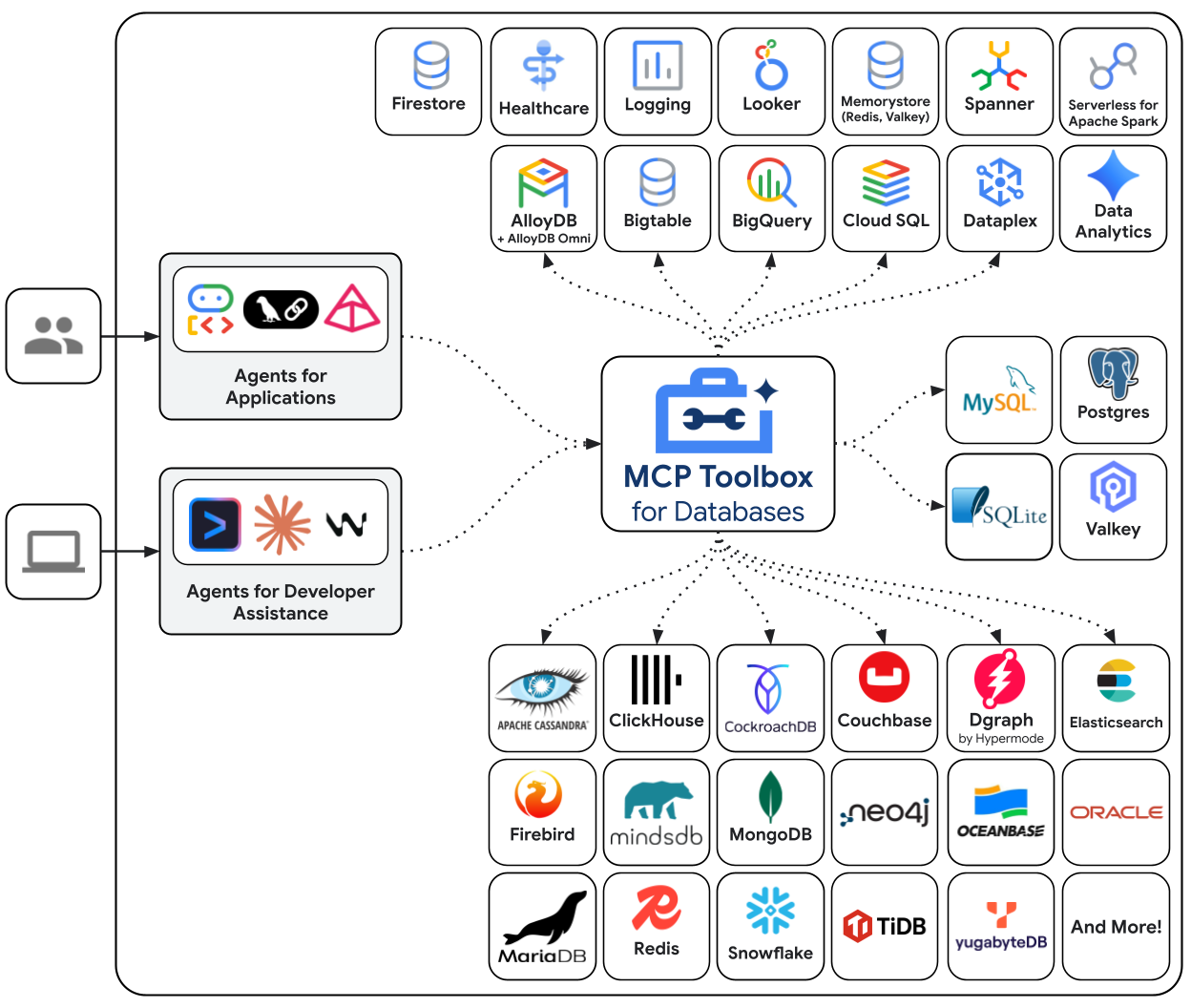
MCP Toolbox for Databases is an open source MCP server for databases.
MCP Toolbox for Databases is an open source MCP server for databases.
·
MCP Toolbox for Databases
MCP Toolbox for Databases is an open source Model Context Protocol (MCP) server that connects your AI agents, IDEs, and applications directly to your enterprise databases.
It serves a dual purpose:
Ready-to-use MCP Server (Build-Time): Instantly connect Gemini CLI, Google Antigravity, Claude Code, Codex, or other MCP clients to your databases using our prebuilt generic tools. Talk to your data, explore schemas, and generate code without writing boilerplate.
Custom Tools Framework (Run-Time): A robust framework to build specialized, highly secure AI tools for your production agents. Define structured queries, semantic search, and NL2SQL capabilities safely and easily.
This README provides a brief overview. For comprehensive details, see the full documentation.
[!IMPORTANT] Repository Name Update: The genai-toolbox repository has been officially renamed to mcp-toolbox. To ensure your local environment reflects the new name, you may update your remote:
git remote set-url origin https://github.com/googleapis/mcp-toolbox.git
[!NOTE]
This solution was originally named “Gen AI Toolbox for Databases” (github.com/googleapis/genai-toolbox) as its initial development predated MCP, but was renamed to align with the MCP compatibility.
Out-of-the-Box Database Access: Prebuilt generic tools for instant data exploration (e.g., list_tables, execute_sql) directly from your IDE or CLI.
Custom Tools Framework: Build production-ready tools with your own predefined logic, ensuring safety through Restricted Access, Structured Queries, and Semantic Search.
Simplified Development: Integrate tools into your Agent Development Kit (ADK), LangChain, LlamaIndex, or custom agents in less than 10 lines of code.
Better Performance: Handles connection pooling, integrated auth (IAM), and end-to-end observability (OpenTelemetry) out of the box.
Enhanced Security: Integrated authentication for more secure access to your data.
End-to-end Observability: Out of the box metrics and tracing with built-in support for OpenTelemetry.
Quick Start: Prebuilt Tools
Stop context-switching and let your AI assistant become a true co-developer. By connecting your IDE to your databases with MCP Toolbox, you can query your data in plain English, automate schema discovery and management, and generate database-aware code.
You can use the Toolbox in any MCP-compatible IDE or client (e.g., Gemini CLI, Google Antigravity, Claude Code, Codex, etc.) by configuring the MCP server.
Prebuilt tools are also conveniently available via the Google Antigravity MCP Store with a simple click-to-install experience.
Add the following to your client's MCP configuration file (usually mcp.json or claude_desktop_config.json):
When you run Toolbox with a --prebuilt=<database> flag, you instantly get access to standard tools to interact with that database. You can also specify a specific toolset using the --prebuilt=<database>/<toolset> syntax (e.g., --prebuilt=postgres/data to only load SQL tools).
Supported databases currently include:
Google Cloud: AlloyDB, BigQuery, Cloud SQL (PostgreSQL, MySQL, SQL Server), Spanner, Firestore, Knowledge Catalog (formerly known as Dataplex).
Other Databases: PostgreSQL, MySQL, MariaDB, SQL Server, Oracle, MongoDB, Redis, Elasticsearch, CockroachDB, ClickHouse, Couchbase, Neo4j, Snowflake, Trino, and more.
For a full list of available tools and their capabilities across all supported databases, see the Prebuilt Tools Reference.
Toolbox can also be used as a framework for customized tools.
The primary way to configure Toolbox is through the tools.yaml file. If you
have multiple files, you can tell Toolbox which to load with the --config tools.yaml flag.
You can find more detailed reference documentation to all resource types in the
Resources.
Sources
The sources section of your tools.yaml defines what data sources your
Toolbox should have access to. Most tools will have at least one source to
execute against.
For more details on configuring different types of sources, see the
Sources.
Tools
The tools section of a tools.yaml define the actions an agent can take: what
type of tool it is, which source(s) it affects, what parameters it uses, etc.
kind: tool
name: search-hotels-by-name
type: postgres-sql
source: my-pg-source
description: Search for hotels based on name.
parameters:
  - name: name
    type: string
    description: The name of the hotel.
statement: SELECT * FROM hotels WHERE name ILIKE '%' || $1 || '%';
For more details on configuring different types of tools, see the
Tools.
Toolsets
The toolsets section of your tools.yaml allows you to define groups of tools
that you want to be able to load together. This can be useful for defining
different groups based on agent or application.
The prompts section of a tools.yaml defines prompts that can be used for
interactions with LLMs.
kind: prompt
name: code_review
description: "Asks the LLM to analyze code quality and suggest improvements."
messages:
  - content: >
         Please review the following code for quality, correctness,
         and potential improvements: \n\n{{.code}}
arguments:
  - name: "code"
    description: "The code to review"
For more details on configuring prompts, see the
Prompts.
Resources
The resources and resourceTemplates sections of your tools.yaml define read-only
content, files, or parameterized directory trees that can be discovered and retrieved
by MCP clients:
kind: resource
name: database_schema_ddl
type: text
description: "Core table definitions and constraints."
mimeType: text/x-sql
text: |
  CREATE TABLE customers (
    id SERIAL PRIMARY KEY,
    name VARCHAR(255) NOT NULL,
    email VARCHAR(255) UNIQUE NOT NULL
  );
---
kind: resource
name: database_schema
type: file
description: "PostgreSQL schema definition."
path: "./schema.sql"
---
kind: resourceTemplate
name: server_logs
type: file
description: "Application log files."
uriTemplate: "file:///var/log/{path}"
allowedPaths:
  - "/var/log"
For more details on configuring resources and resource templates, see
Resources.
This runs the latest version of the Toolbox server with your configuration file.
[!NOTE]
This method is optimized for convenience rather than performance.
For a more standard and reliable installation, please use the binary
or container image as described in Install & Run the Toolbox server.
Install Toolbox
For the latest version, check the releases page and use the
following instructions for your OS and CPU architecture.
Binary
To install Toolbox as a binary:
Linux (AMD64)
To install Toolbox as a binary on Linux (AMD64):
# see releases page for other versions
export VERSION=1.15.0
curl -L -o toolbox https://storage.googleapis.com/mcp-toolbox-for-databases/v$VERSION/linux/amd64/toolbox
chmod +x toolbox
macOS (Apple Silicon)
To install Toolbox as a binary on macOS (Apple Silicon):
# see releases page for other versions
export VERSION=1.15.0
curl -L -o toolbox https://storage.googleapis.com/mcp-toolbox-for-databases/v$VERSION/darwin/arm64/toolbox
chmod +x toolbox
macOS (Intel)
To install Toolbox as a binary on macOS (Intel):
# see releases page for other versions
export VERSION=1.15.0
curl -L -o toolbox https://storage.googleapis.com/mcp-toolbox-for-databases/v$VERSION/darwin/amd64/toolbox
chmod +x toolbox
Windows (Command Prompt)
To install Toolbox as a binary on Windows (Command Prompt):
:: see releases page for other versions
set VERSION=1.15.0
curl -o toolbox.exe "https://storage.googleapis.com/mcp-toolbox-for-databases/v%VERSION%/windows/amd64/toolbox.exe"
Windows (PowerShell)
To install Toolbox as a binary on Windows (PowerShell):
# see releases page for other versions
$VERSION = "1.15.0"
curl.exe -o toolbox.exe "https://storage.googleapis.com/mcp-toolbox-for-databases/v$VERSION/windows/amd64/toolbox.exe"
Windows ARM64 (Command Prompt)
To install Toolbox as a binary on Windows ARM64 (Command Prompt):
:: see releases page for other versions
set VERSION=1.15.0
curl -o toolbox.exe "https://storage.googleapis.com/mcp-toolbox-for-databases/v%VERSION%/windows/arm64/toolbox.exe"
Windows ARM64 (PowerShell)
To install Toolbox as a binary on Windows ARM64 (PowerShell):
# see releases page for other versions
$VERSION = "1.15.0"
curl.exe -o toolbox.exe "https://storage.googleapis.com/mcp-toolbox-for-databases/v$VERSION/windows/arm64/toolbox.exe"
Container image
You can also install Toolbox as a container:
# see releases page for other versions
export VERSION=1.15.0
docker pull us-central1-docker.pkg.dev/database-toolbox/toolbox/toolbox:$VERSION
Homebrew
To install Toolbox using Homebrew on macOS or Linux:
brew install mcp-toolbox
Compile from source
To install from source, ensure you have the latest version of
Go installed, and then run the following command:
Gemini CLI
Check out the [Gemini CLI extensions](https://geminicli.com/extensions/) to install prebuilt tools for specific databases like AlloyDB, BigQuery, and Cloud SQL directly into Gemini CLI.
export VERSION=0.24.0 # Use the version you pulled
docker run -p 5000:5000 \
-v $(pwd)/tools.yaml:/app/tools.yaml \
us-central1-docker.pkg.dev/database-toolbox/toolbox/toolbox:$VERSION \
--config "/app/tools.yaml"
ⓘ Note
The -v flag mounts your local tools.yaml into the container, and -p maps
the container's port 5000 to your host's port 5000.
Source
To run the server directly from source, navigate to the project root directory
and run:
go run .
ⓘ Note
This command runs the project from source, and is more suitable for development
and testing. It does not compile a binary into your $GOPATH. If you want
to compile a binary instead, refer the Developer
Documentation.
Homebrew
If you installed Toolbox using Homebrew, the toolbox
binary is available in your system path. You can start the server with the same
command:
toolbox --config "tools.yaml"
NPM
To run Toolbox directly without manually downloading the binary (requires Node.js):
npx @toolbox-sdk/server --config tools.yaml
Gemini CLI
After installing a [Gemini CLI extensions](https://geminicli.com/extensions/), the prebuilt tools will be available during use.
# Run Gemini CLI
gemini

# List extensions
/extensions list
# List MCP servers
/mcp list
You can use toolbox help for a full list of flags! To stop the server, send a
terminate signal (ctrl+c on most platforms).
For more detailed documentation on deploying to different environments, check
out the resources in the Deploy Toolbox
section
Connect to Toolbox
Once your Toolbox server is up and running, you can load tools into your MCP-compatible client or
application.
MCP Client
Add the following configuration to your MCP client configuration:
Toolbox Client SDKs provide the easy-to-use building blocks and advanced features for connecting your custom applications to the MCP Toolbox server. See below the list of Client SDKs for using various frameworks:
package main

import (
  "github.com/googleapis/mcp-toolbox-sdk-go/core"
  "context"
)

func main() {
  // Make sure to add the error checks
  // update the url to point to your server
  URL := "http://127.0.0.1:5000";
  ctx := context.Background()

  client, err := core.NewToolboxClient(URL)

  // Framework agnostic tools
  tools, err := client.LoadToolset("toolsetName", ctx)
}
For more detailed instructions on using the Toolbox Go SDK, see the
project's README.
package main
import (
  "context"
  "log"

  "github.com/firebase/genkit/go/genkit"
  "github.com/googleapis/mcp-toolbox-sdk-go/core"
  "github.com/googleapis/mcp-toolbox-sdk-go/tbgenkit"
)

func main() {
  // Make sure to add the error checks
  // Update the url to point to your server
  URL := "http://127.0.0.1:5000"
  ctx := context.Background()
  g := genkit.Init(ctx)

  client, err := core.NewToolboxClient(URL)

  // Framework agnostic tool
  tool, err := client.LoadTool("toolName", ctx)

  // Convert the tool using the tbgenkit package
  // Use this tool with Genkit Go
  genkitTool, err := tbgenkit.ToGenkitTool(tool, g)
  if err != nil {
    log.Fatalf("Failed to convert tool: %v\n", err)
  }
  log.Printf("Successfully converted tool: %s", genkitTool.Name())
}
package main

import (
  "github.com/googleapis/mcp-toolbox-sdk-go/tbadk"
  "context"
)

func main() {
  // Make sure to add the error checks
  // Update the url to point to your server
  URL := "http://127.0.0.1:5000"
  ctx := context.Background()
  client, err := tbadk.NewToolboxClient(URL)
  if err != nil {
    return fmt.Sprintln("Could not start Toolbox Client", err)
  }

  // Use this tool with ADK Go
  tool, err := client.LoadTool("toolName", ctx)
  if err != nil {
    return fmt.Sprintln("Could not load Toolbox Tool", err)
  }
}
For more detailed instructions on using the Toolbox Go SDK, see the
project's README.
Additional Features
Test tools with the Toolbox UI
To launch Toolbox's interactive UI, use the --ui flag. This allows you to test
tools and toolsets with features such as authorized parameters. To learn more,
visit Toolbox UI.
./toolbox --ui
Telemetry
Toolbox emits traces and metrics via OpenTelemetry. Use --telemetry-otlp=<endpoint>
to export to any OTLP-compatible backend like Google Cloud Monitoring, Agnost AI, or
others. See the telemetry docs for details.
Generate Agent Skills
The skills-generate command allows you to convert a toolset into an Agent Skill compatible with the Agent Skill specification. This is useful for distributing tools as portable skill packages.
Contributions are welcome. Please, see the CONTRIBUTING guide to get started.
For technical details on setting up a environment for developing on Toolbox itself, see the DEVELOPER guide.
Please note that this project is released with a Contributor Code of Conduct. By participating in this project you agree to abide by its terms. See Contributor Code of Conduct for more information.
Runs locally on your device. Your client starts the server itself, so nothing has to be hosted.
Install with your agent
Paste this prompt into your agent. It reads this page and does the setup for you.
prompt
Read https://aiagentslisting.com/mcp/mcp-toolbox-for-databases to learn what the "MCP Toolbox for Databases" MCP server does and how to install it. Add it to my coding agent's MCP configuration as documented on that page, then confirm the server connects and list the tools it exposes.
Agents can also browse this directory over MCP at https://aiagentslisting.com/api/mcp
From the project README
bashbash
npx @toolbox-sdk/server --config tools.yaml
docker run -p 5000:5000
This server runs locally, so we can't read its tool list over the web yet.
Paste this line near the top of your repository's README. The badge always renders the current score.
markdown
[](https://aiagentslisting.com/mcp/mcp-toolbox-for-databases)
Connect to the AI Agents Listing MCP server at https://aiagentslisting.com/api/mcp using the HTTP transport and complete the sign-in when it asks. Then call the submit_review tool for the listing "mcp-toolbox-for-databases" with a rating from 1 to 5 and a short note on what worked and what did not.
No reviews yet
Be the first to share your experience with this tool.
Evidence-first AI URL intelligence agent for crawling, entity resolution, social discovery, SEO, tec
URL Intelligence Agent turns any public URL into structured, evidence-backed intelligence.
It goes beyond scraping and metadata extraction by combining safe crawling, entity resolution, social and contact discovery, domain and technology intelligence, SEO and security analysis, confidence scoring and source provenance.
Built for developers and AI agents, it can investigate websites, identify people, companies, products and projects, discover relationships, monitor changes and generate structured outputs for RAG, automation and downstream applications.
Run it through CLI, HTTP API or native MCP. AI reasoning is optional, the core intelligence pipeline works deterministically and can be fully self-hosted.

 googleapis